
Michael Russell – UX Design
Fluidity Solutions November-December 2024

Introduction
Designing and community outreach for members of the Digital City (Southern African Setswana diaspora) to connect, learn and organize events.
The goals for this community platform are to connect individuals with the wider tribal nation. Its to harbor strong community feeling, creating opportunities to organize, learn, and create together while bringing people into the future.
Since there will be a large population of people who are unfamiliar with these platforms the goal is to make it as simple as possible to understand and also feed people into areas they are interested in or knowledgeable in.
The Stakeholders were keen for the younger generations to take a leadership and guiding role here and encourage the real life communities to come closer together and cooperate with each other and follow the curiosities of their minds.
Onboarding Flow
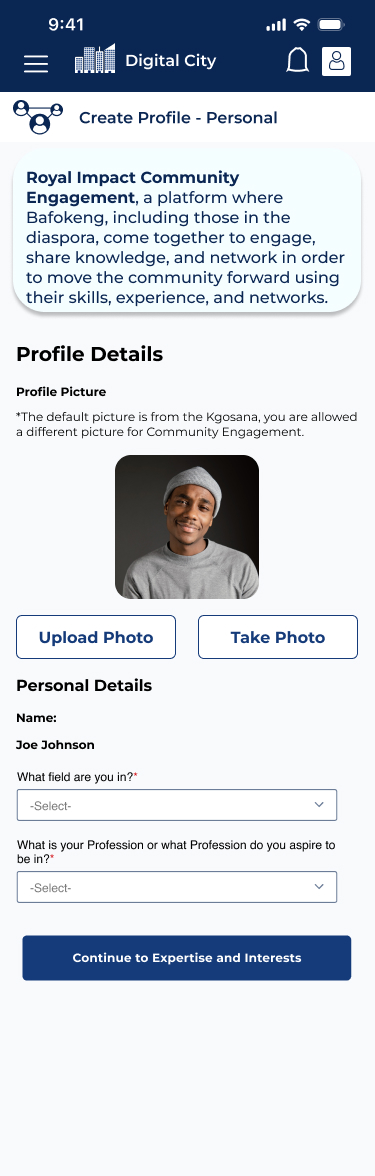
- The User fills out personal information.
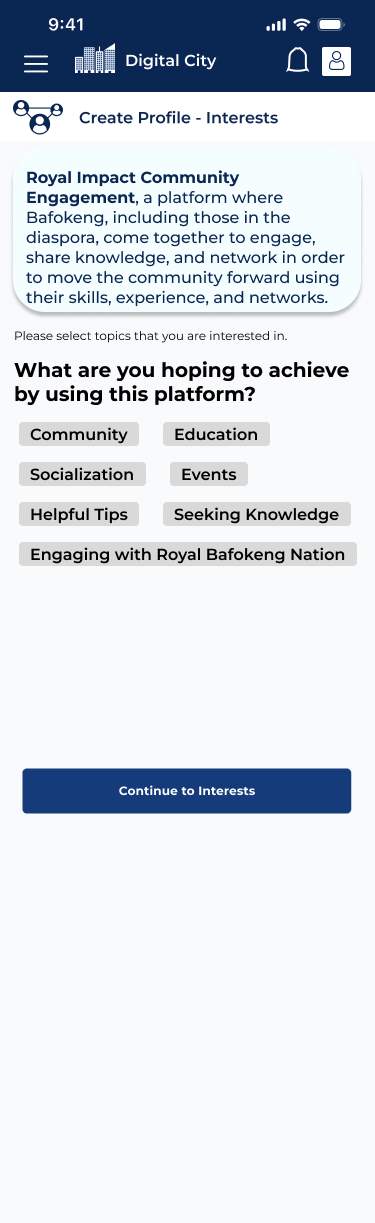
- Then selects what they are hoping to achieve and bring to the community through the platform.
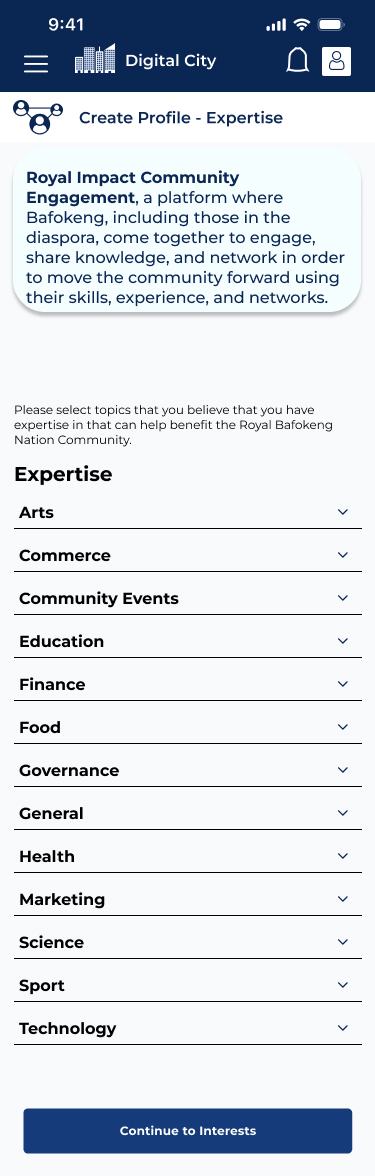
- Selects Expertise and Interests
- Gets a list of suggested communities based on what they have selected.
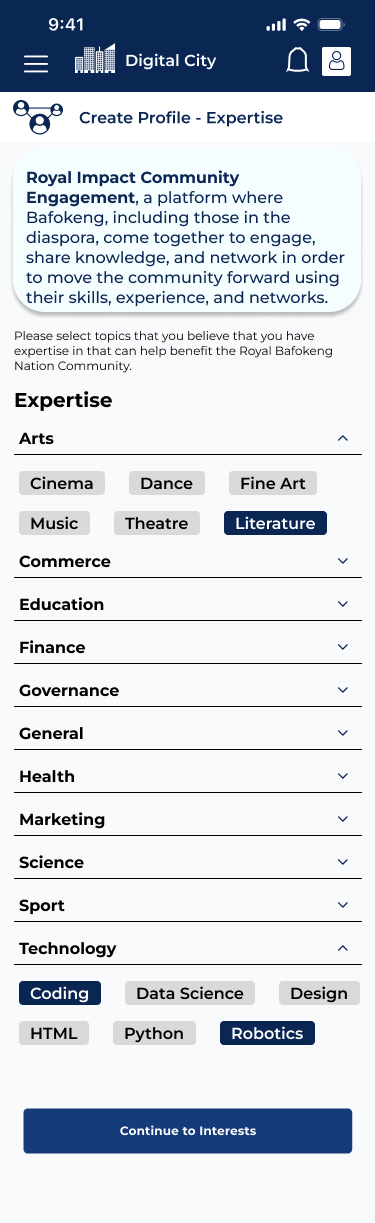
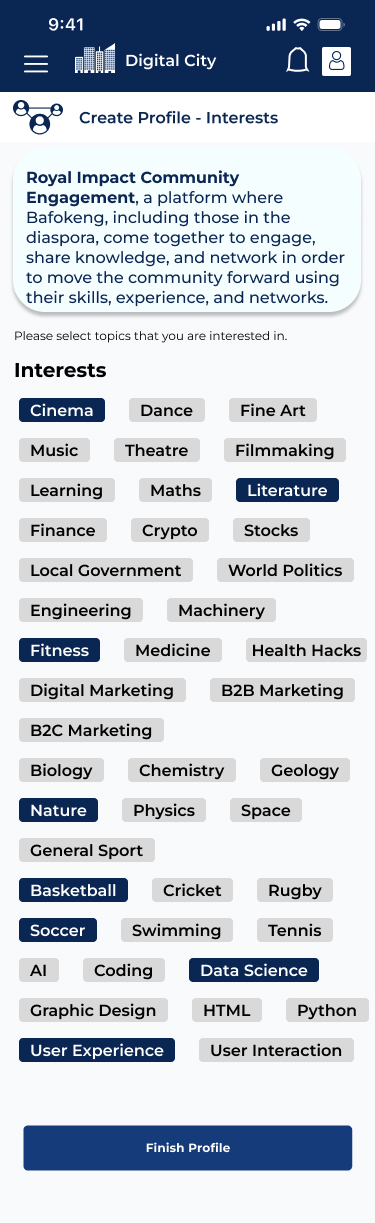
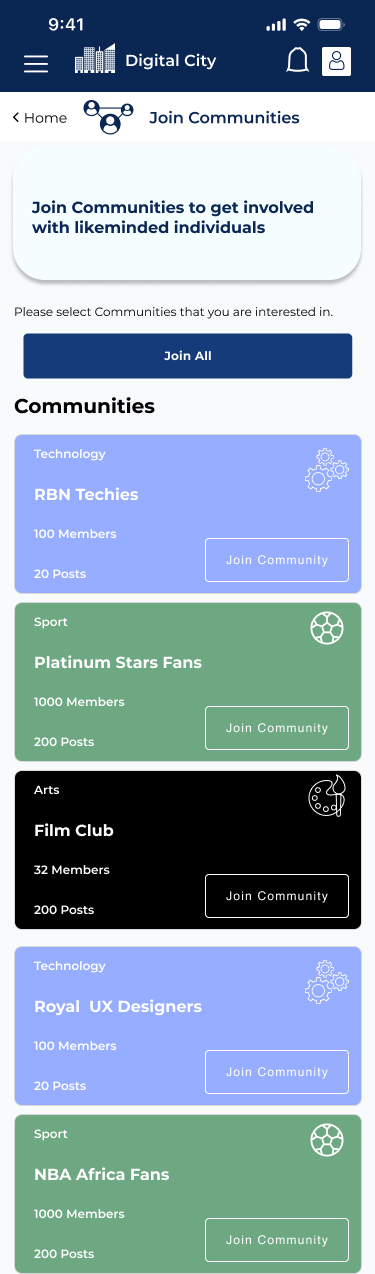
- This offers the user a strong amount of personalization early so they won’t necessarily have to go through any of these steps again.
- The format is familiar with many other sites.
- The Iconography works to denote different types of communities. This information will also appear on a users’ profiles.

Home Page Dashboard
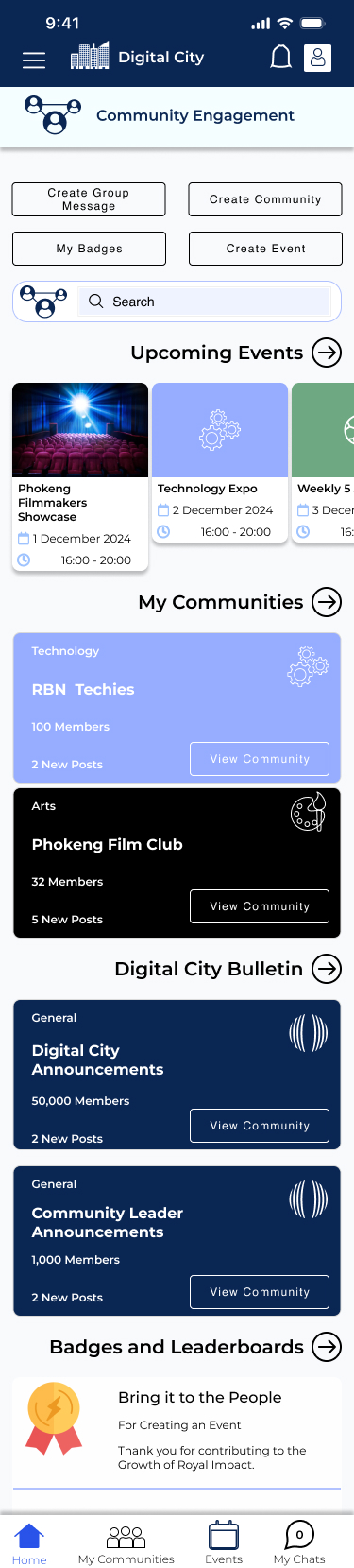
- When users access the homepage they are welcomed with the opportunity to connect with other members by creating group chats, events and communities.
- They are able to search for communities, people, and events.
- Often the leaders of the Tribal Communities will post mandatory events hence ‘upcoming events’ will always appear at the top.
- Users can side scroll certain events that are upcoming or tap the arrow for an overview.
- Only Events that the user has selected or been invited to attend will appear in their upcoming events.
- ‘My Communities’ the top 2 or 3 communities that the user is engaged with appear on the dashboard (NB a community that the user has created will always appear first).
- The Bulletin has any pertinent news about community ongoings.
- Users can get badges to encourage further engagement. Mainly with creating communities, events, and being helpful in the online communities to encourage further engagement.
Contributing to a Community

Communities operate similarly to how a reddit community would:
- User can instantly create a discussion topic at the top and has the ability to leave the community if its not for them.
- With the ability to filter by today, this week, this month, this year.
- Ability to sort by most comments, likes, admin and newest.
- Ability to search specific keywords so users can quickly find the information that they may need from the community.
- Ability to report content to the group admin if it is not appropriate. Ability to like posts.
- Date and time of post included.
- Ability to add media to posts.
- Each User adds the specific keyword for search in their posts so the community can easily access it through a search.

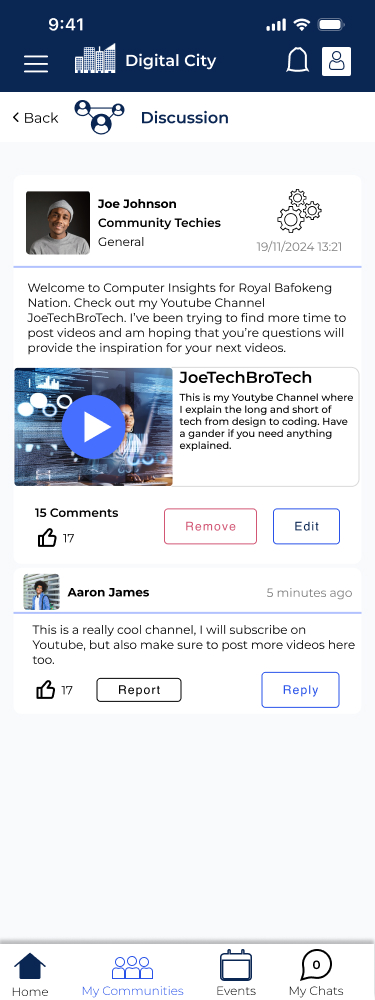
When a user taps on “View Discussion” they can reply to the overall discussion topic that is always at the top or they can reply to individual comments and replies to replies. Users can post links in the replies but they will not appear with imaging as to not take too much away from the original discussion piece. Only the ability to like to encourage positive reinforcement, report can be used on direct replies to the original post or to replies on the users comment (group admins and discussion creators have the ability to report any content). This is intended to prevent frivolous reporting of content.
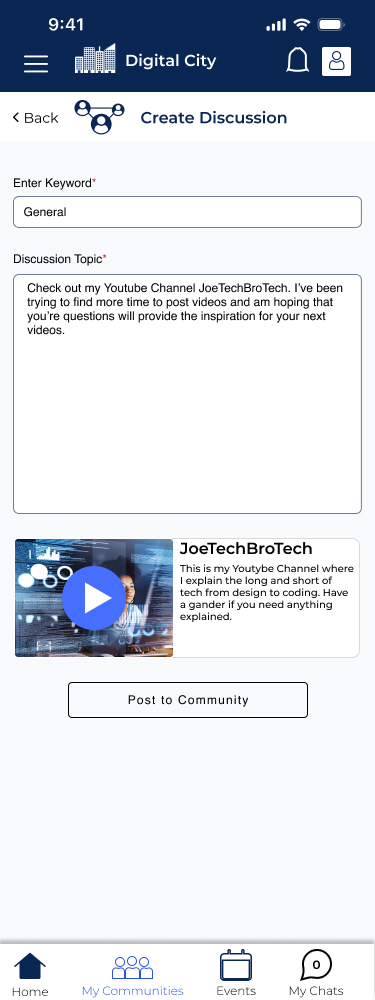
To create a discussion the user need only tap “Create Discussion in the dashboard and is led to the create discussion page. They enter a keyword and type out their discussion and potentially add media if they are promoting something.
Keywords can be any topic but users are encouraged to keep it in the topic of the specific community so other users can find this information.
An example of the flow is included below with the third screen being the posted content with a comment.
Users are notified whenever someone else contributes to their discussion.

Community Creation
Users are encouraged to create their own communities to help spread their individual knowledge and bring more cohesion and trust into their real life communities. These communities still have to fit within the areas presented at onboarding and must be relevant to garnering better real life communities with the goal of encouraging positive discourse and providing helping hands where needed.
To Create a community the user can simply tap the “Create Community” button on the dashboard. The Flow to create this is as follows:
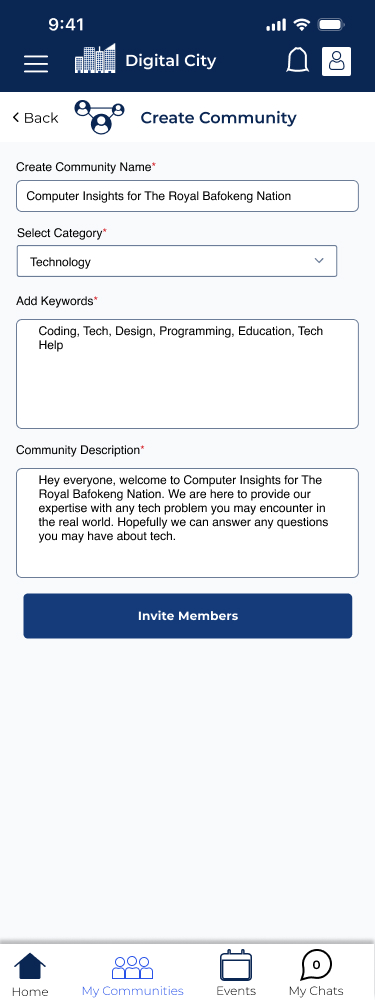
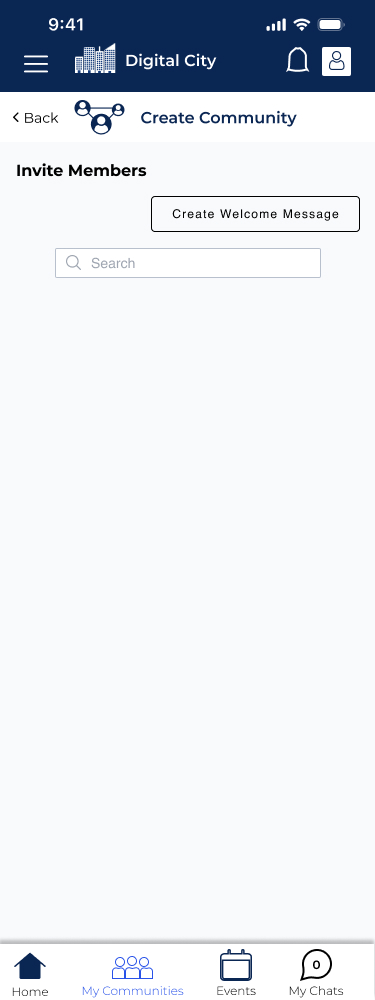
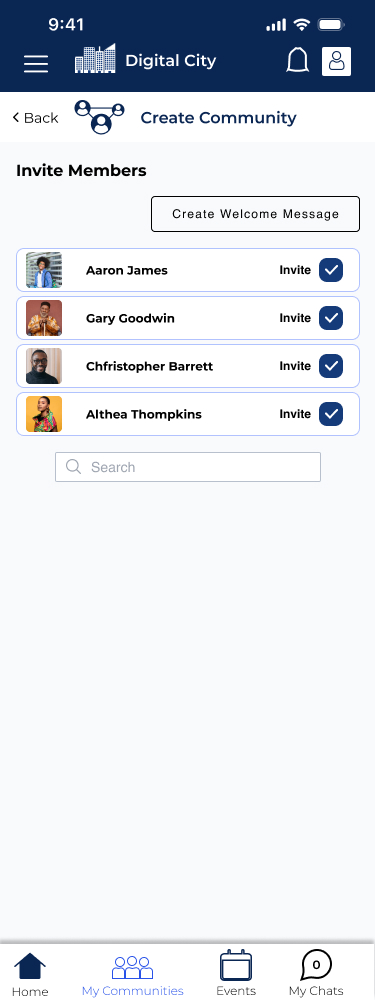
The Community needs a name, a category, keywords, and a description. The creator is then prompted to add members. They can type out their friends names here (all members of the tribal people in the area that serves the digital city are encouraged to join the digital city, so they can easily find their friends, family, and community leaders to any community they start. Communities also must be approved by the administration.
After adding members the creator must write a welcome message to promote the community.


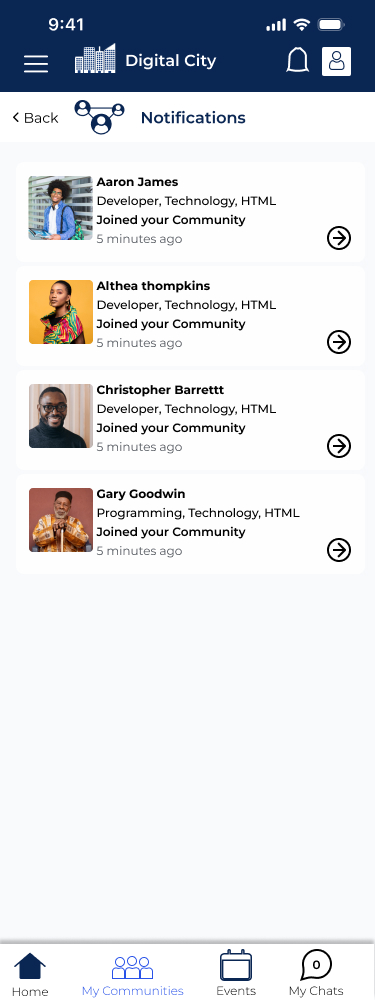
The second screen is how the community looks after the welcome message has been posted. Users are notified whenever a new member joins the community. The third screen shows how notifications are presented.
Search Functionality
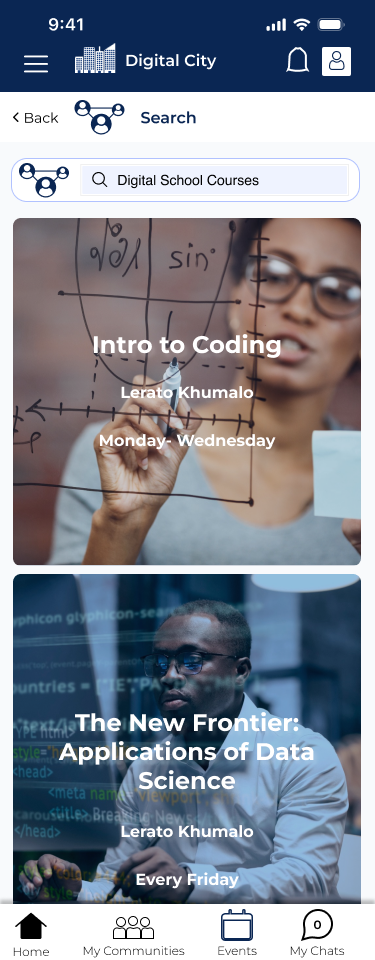
Users can search for Individual profiles, communities, classes provided by the Digital School Platform, and events.

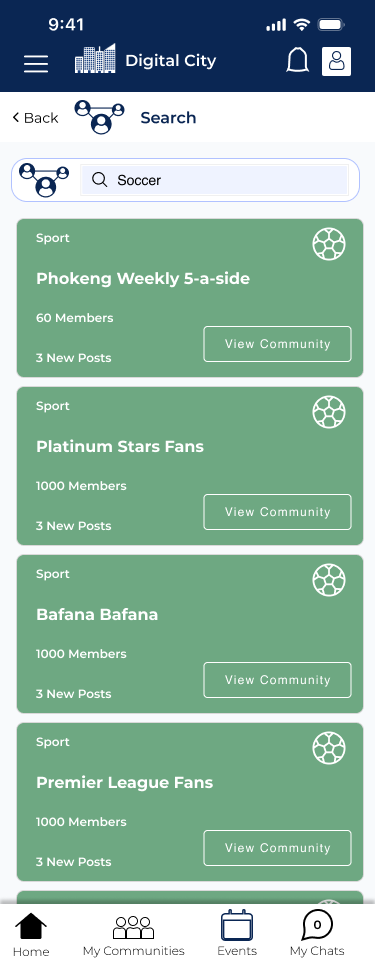
Profile View
Class preview
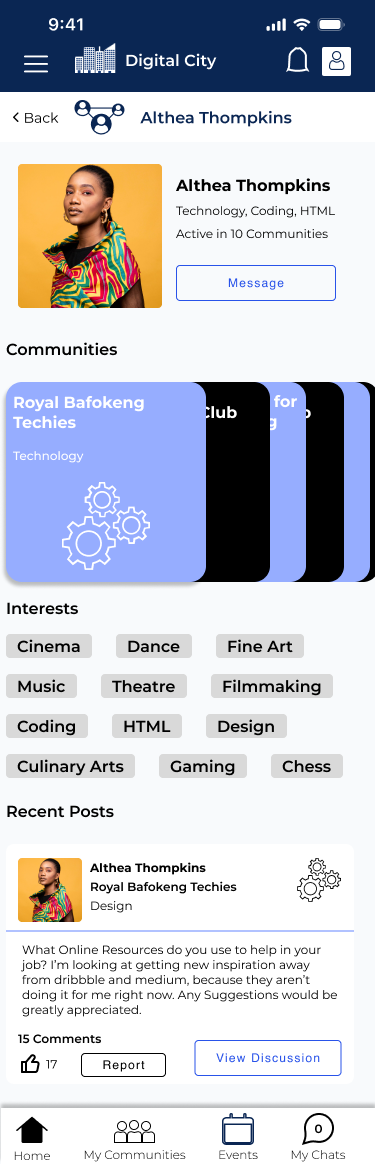
User can scroll through the communities another person is involved with and their interactions with communities and created events (if public) will appear on their page.
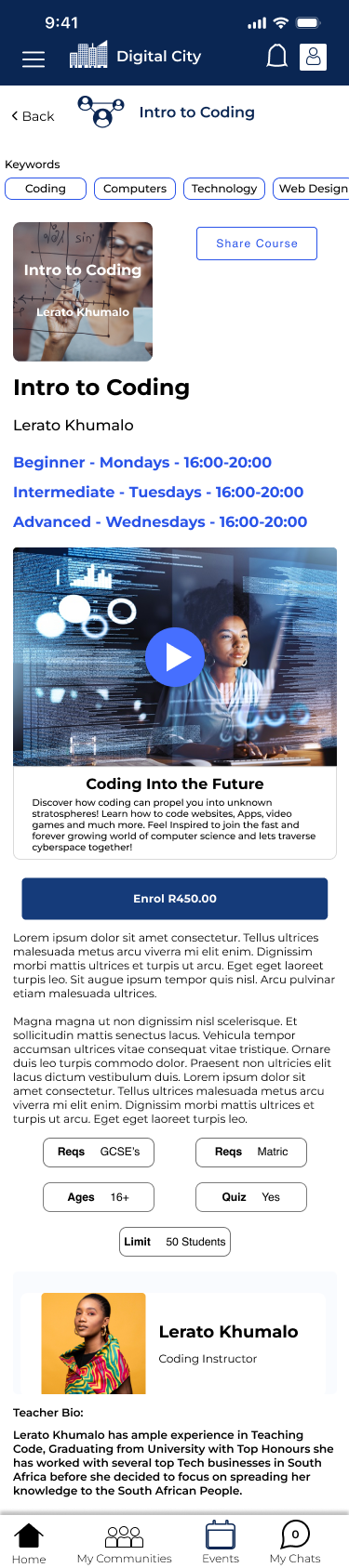
Direct Messaging and Group Chats
As with any community based program it is important that the community is able to communicate even if they do not have each other’s phone numbers. So we implemented a group chat system which would be used for organizing as well as just general discourse. To create a group chat users can do it either from the home dashboard or form tapping my chats on the bottom navigation. Once created the user is prompted by these screens.
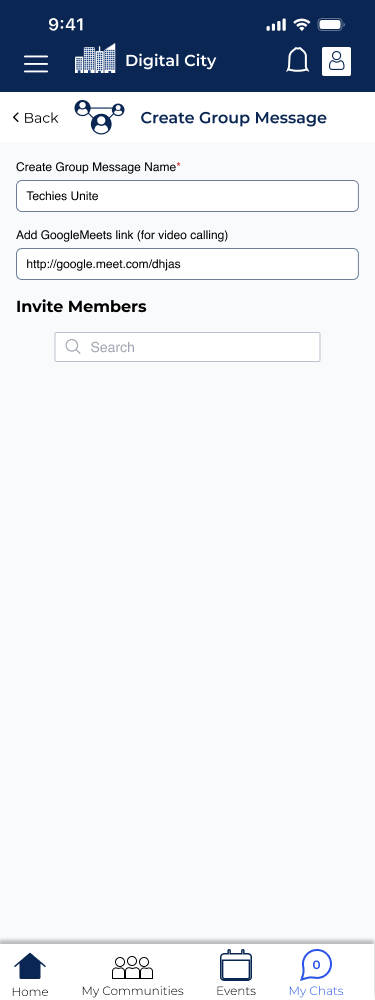
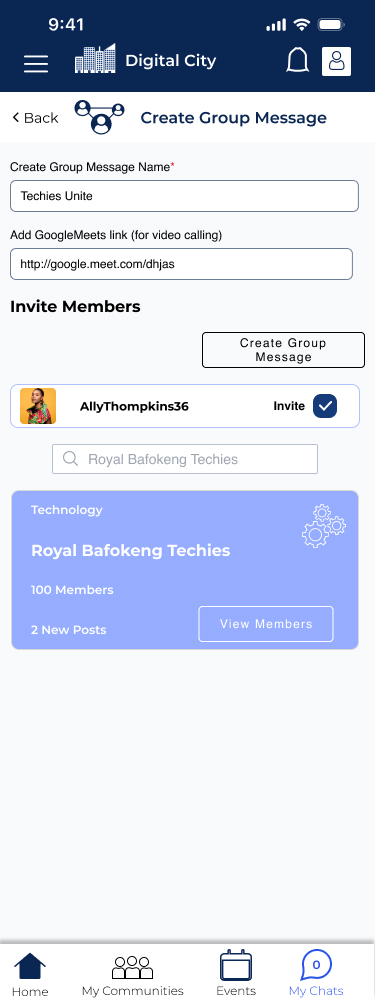
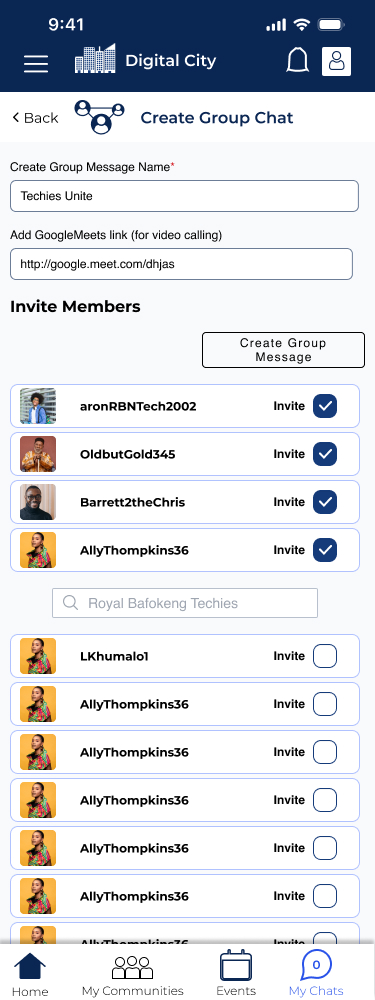
1- User creates group name and adds a google meet incase they want to video chat.
2- User can search by name of other users or through communities they are involved in.
3- User invites others from the community and presses create group message.
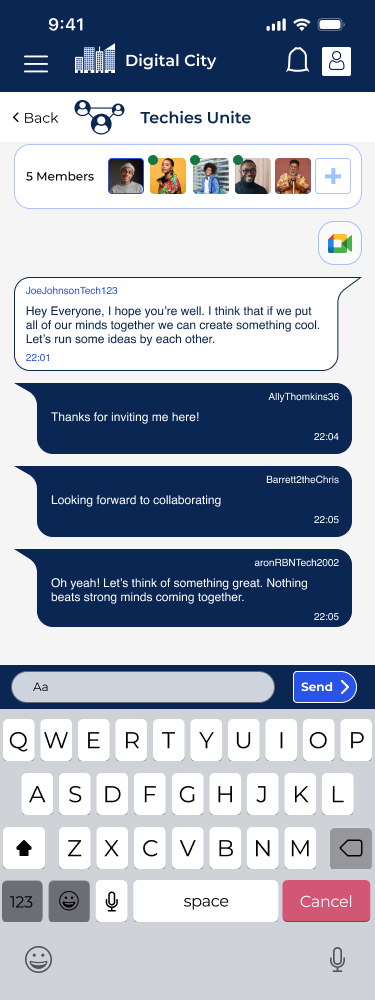

1- Messaging screen denoting when messages were received (and from whom) while showing who is online at the top.
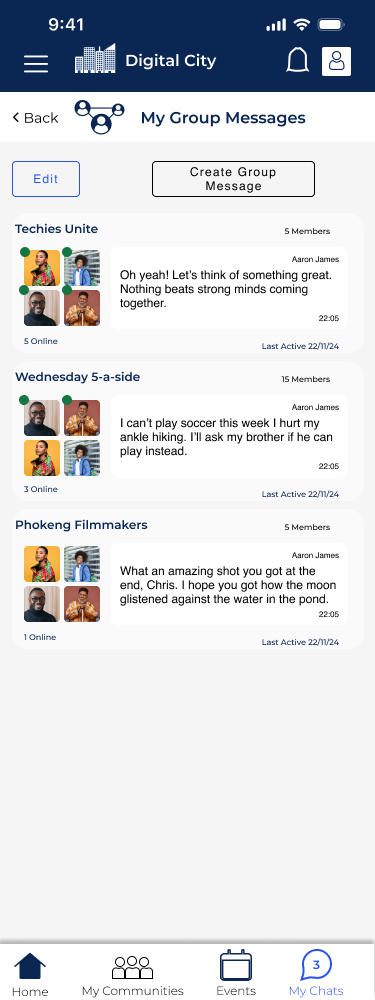
2- My Chats screen showing the group messages the user is involved with while the green bubbles show who is online.
3- When the user selects edit they can delete group messages (if they created it) or leave the group message.
(if they are the creator it will delete the data from it *except for admins)
Event Creation
Everyone loves bringing the community together and joining in on things in real life. Event creation allows members of the digital city to showcase their talents or even just create social gatherings. In creating the event it was important for the users to be able to add as much information as possible so potential attendees can get all the information that they need.
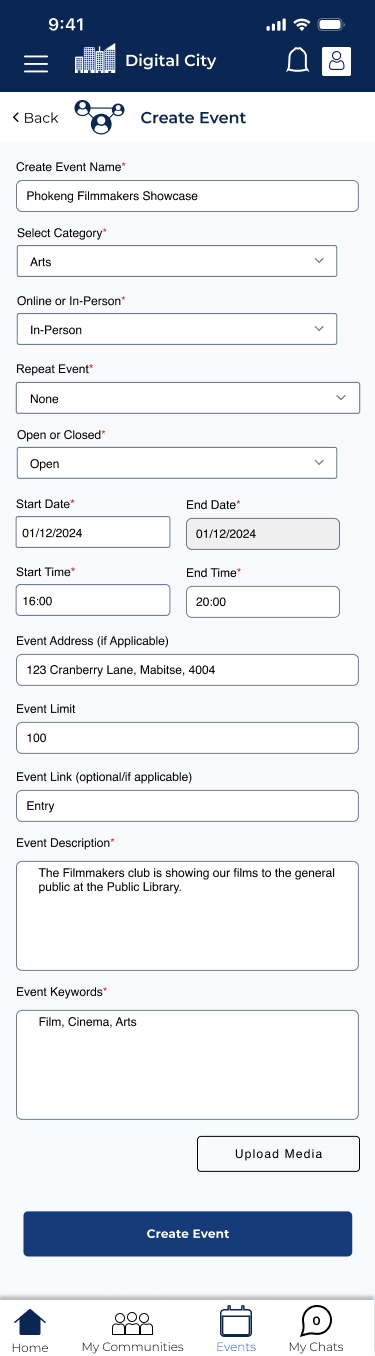
- The user must select the Category for the event (so others with an interest might be able to search for it, and it can be classed with its ilk).
- Users also select whether it is in-person or an online event (if so the event requires a link to the googlemeets).
- Whether it is a repeating event such as a weekly meet-up for sport or study sessions.
- Whether it is an open or closed event meaning whether it is exclusive and other users require an invite or if it is available for everyone on the platform to see.
- User adds a description for context.
- Keywords mnust be added to make it easier to search for.
- User can add pictures or a video to showcase the event.
Once the user creates the event they are prompted to invite people in their circles.

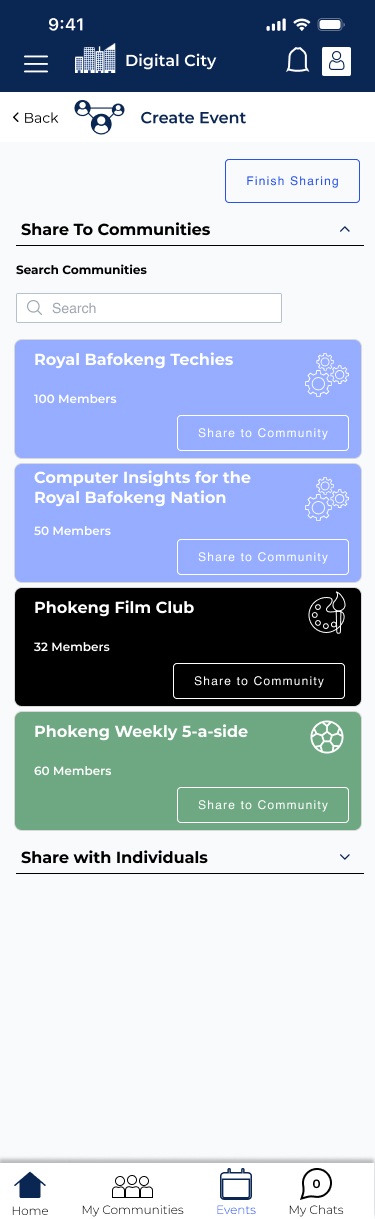
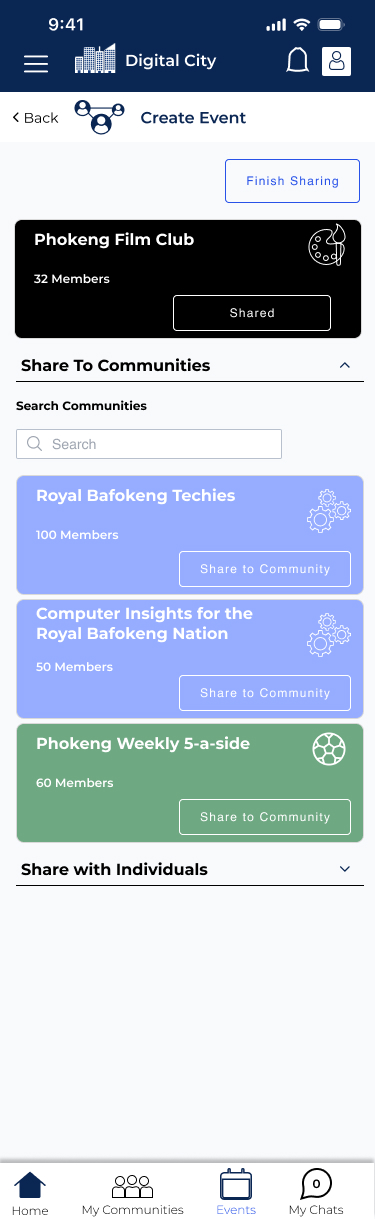
1- Share to communities or individuals, or skip.
2- communities that the user belongs to show up.
3- Once community is shared it appears at the top.
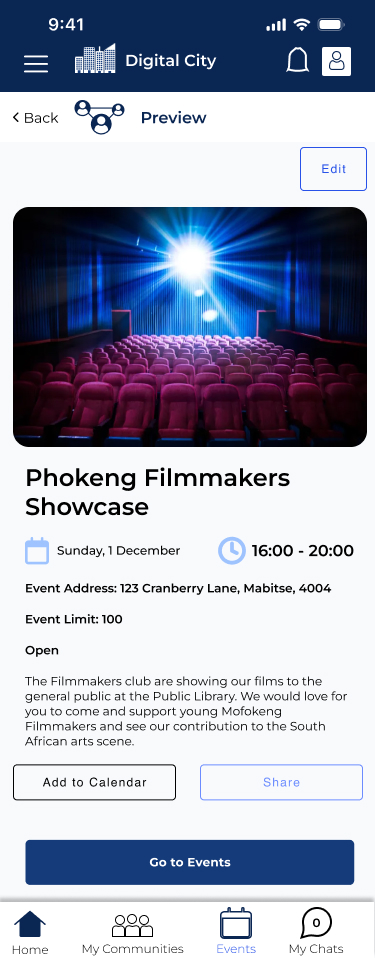
The user is then offered a ‘Preview” of how the event will look to other users. For the creator the “Share” Button appears however if it is an outside user it will appear as “RSVP”. Users can also add it to calendar and it will appear on their upcoming events without necessarily RSVP-ing.
Finding Events
Users can go to search, can find events through the events tab on the homepage, or the events tab on the bottom navigation. Once selected users can find upcoming events based on Category, Date, or just searching for it on the search bar. The users upcoming events that have been RSVP-ed to or Added to their calendar appear at the top.

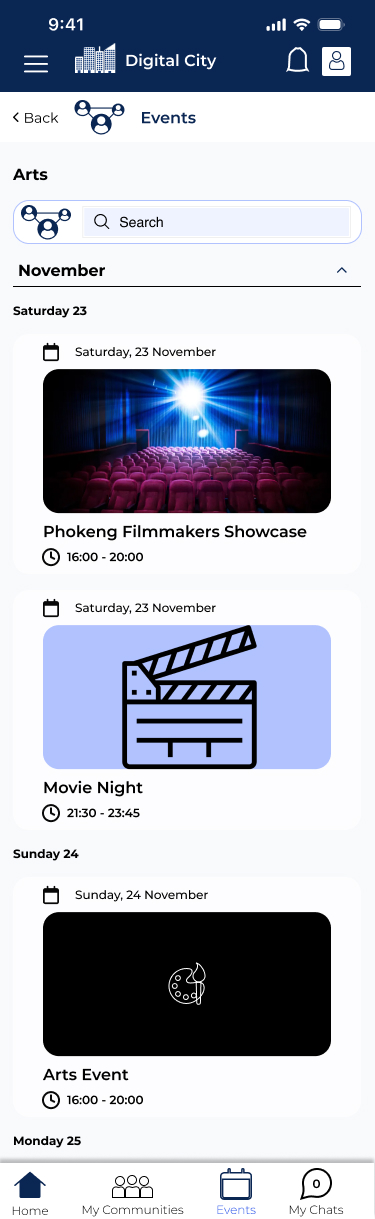
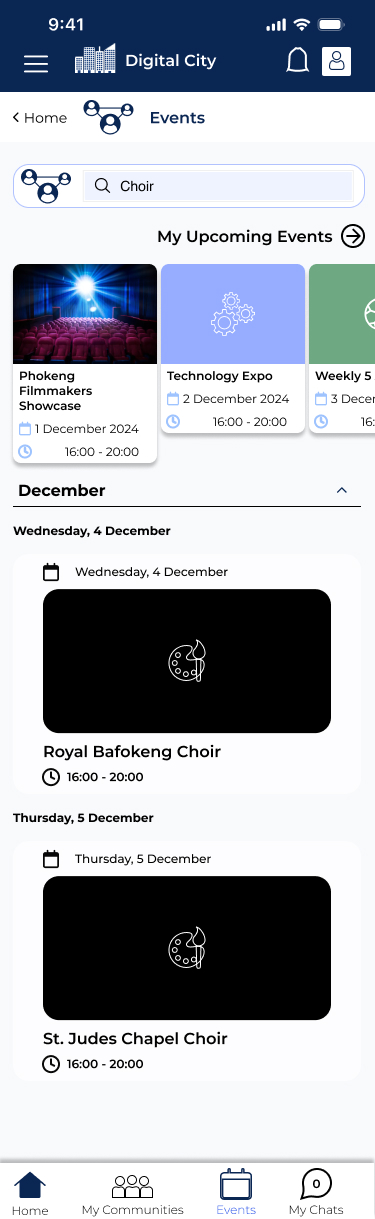
1- User can search by tapping the category they need.
2- Once the category is selected the events populate by date and the user scrolls down. (Similar to finding events on Eventbrite or Songkick for concerts.) Missed events will not show up.
3- User can also type in a descriptor for their desired event and find it that way. (eg. User wants to see a choir, only choral events pop up).
Badges and Leaderboards
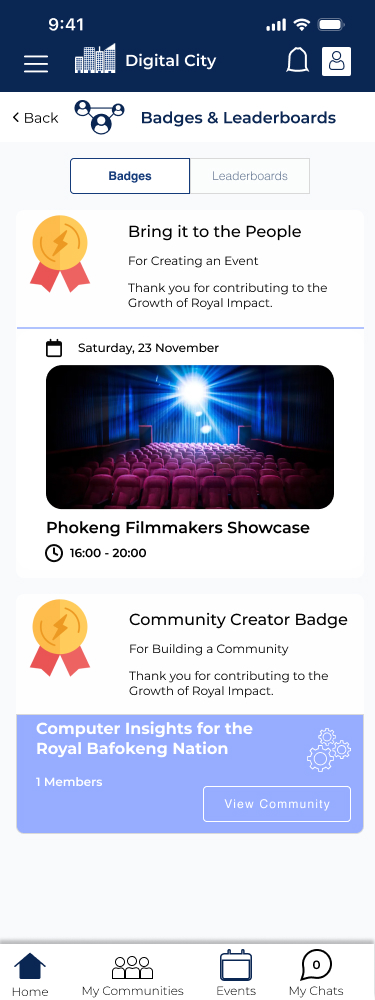
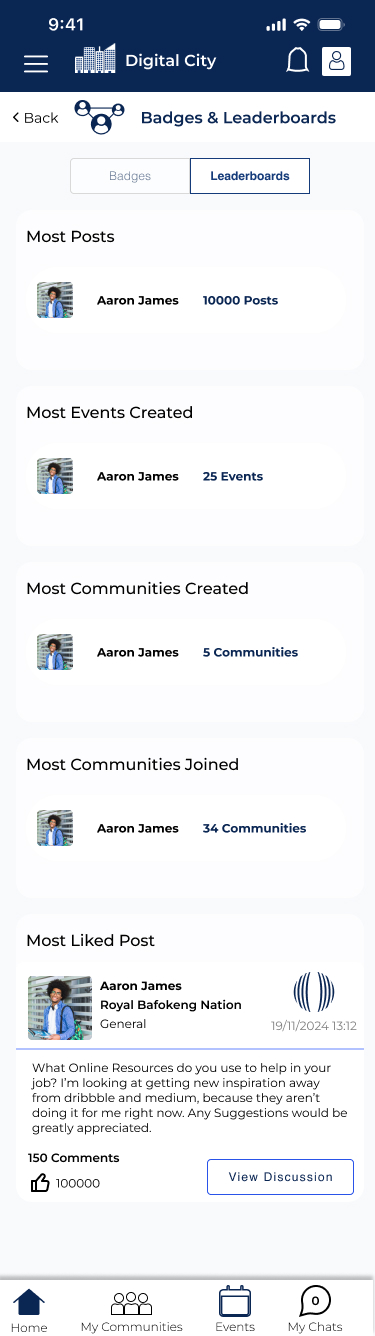
Finally we are onto how to keep the community engaged. It cannot be just through going to group events, learning opportunities, chatting, taking courses together and indulging in curiosity through communities. The people need a little reward and thank you from the platform from time to time. We implemented badges and leaderboards to drive further engagement and put a little smile on the users’ faces. Badges are created by the admins as follows in a quick sweep.

The Admin creates the badges based on the three main categories of Communities, Events and of course ‘Likes.’ These Badges are done incrementally so users automatically get one for each milestone they reach. Everyone gets a badge for the first time they contribute and then the admin sets subsequent markers. The Admins can also upload whatever they would like the badge design to be.
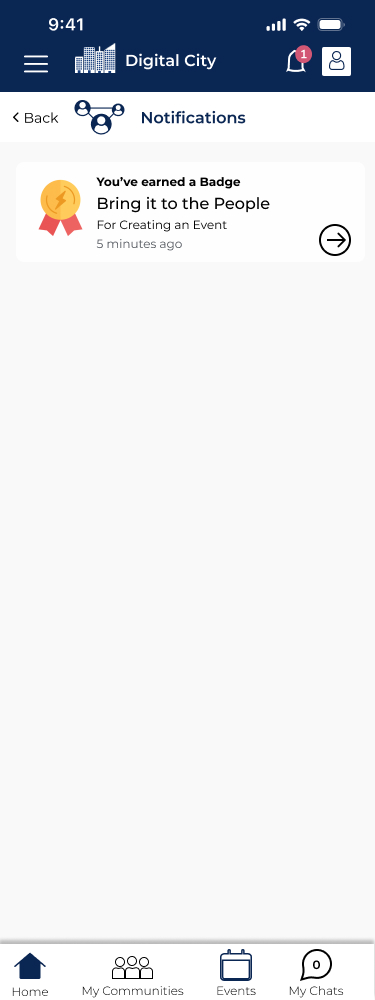
The flow for the users is once they reach the milestone they receive a notification with the badge. They can also view the badges and view the overall leaderboard too.
Conclusions
It takes a lot of work to build a community platform with a limited time span and being 10,000 miles away from said community. The main desire was to make this fun, intuitive, engaging, and informative. The Digital City concept wants to enrich the whole community through engaging with it online as well as in person to strengthen community bonds. The Community Leaders (in real life) are also administrators who can prevent communities getting out of hand, with a desire to inspire curiosity, togetherness, and opportunities to gather and learn together bringing the 21st century in full force to their nation. Hopefully this provides a great outlet to do so. I was proud and beyond happy to lend my talents to this and all I can hope for is that I did it justice.
 Michael Russell Design Portfolio