

Michael Russell – UX Design Case Study
October 2024

Designing a Digital Library/ Bookstore platform for members of the Digital City (Southern African Setswana diaspora) to help with the Digital School Programmes, as well as a platform for the community having quick and easy access to books.
Creating a digital library required some inspiration from outside sources. The main sources of design inspiration were from Waterstones and Apple Books to create the platform. The platforms’ user base consist of the community (regular folks looking to buy books to supplement their education or just learn something new in general) and publishers who are releasing books onto the platform. Publishers can be programme instructors from the Digital School or just regular publishers and authors who want to get involved with the platform.
The digital library is intrinsically mixed with the digital school giving preference to students in the community to easily find the resources that the need in order to flourish in their studies.
Standard User Flow
Purchasing Literature
The flow follows the general practices of most shopping platforms.
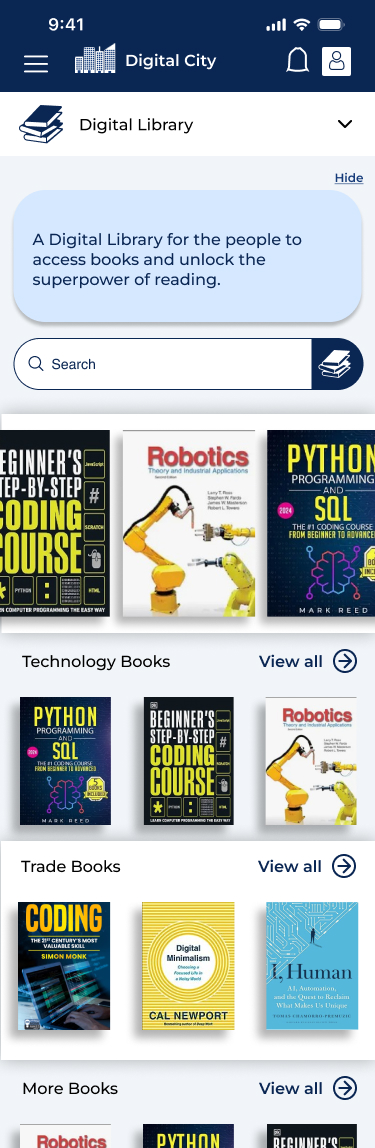
1- Homepage with headings for book genres. User can side swipe or tap ‘View all’ to see more.

2- Search page contains other relevant keywords and all books on the subject.

3- Book Preview with quick click to buy. A Description with all the other pertinent information and a link to more books on the subject matter.
After the User has purchased books
When the user has found books or has enrolled in a course the dashboard changes slightly. Instead of just genres “My Books” appears first.
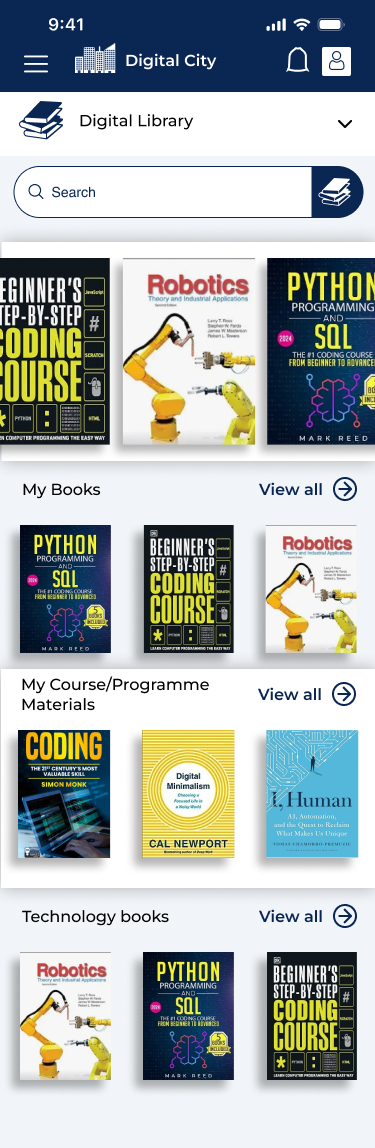
- User has direct access to any books that they have purchased.
- User also has direct access to any reading materials involved with Courses or Programmes involved with the Digital City Digital School.
- The heading ‘Digital Library’ contains an arrow for instant navigation to the ‘Digital School’ Platform.
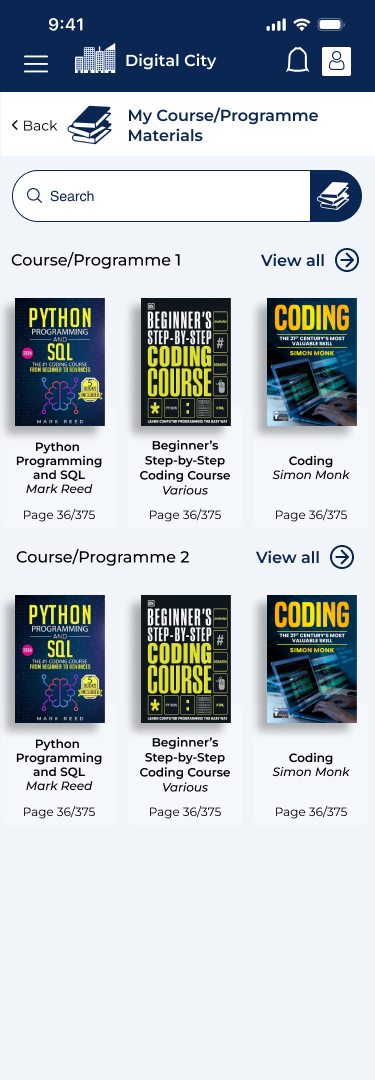
1- User can access each book by the course. Each book has the last page read saved so the user can jump right back in.
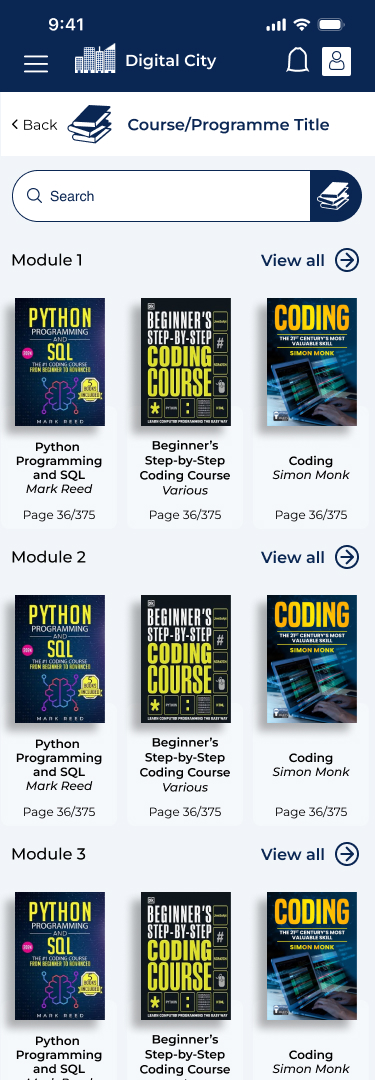
2- User can toggle through the different modules of a course or programme to find the right book they need to reference or read.
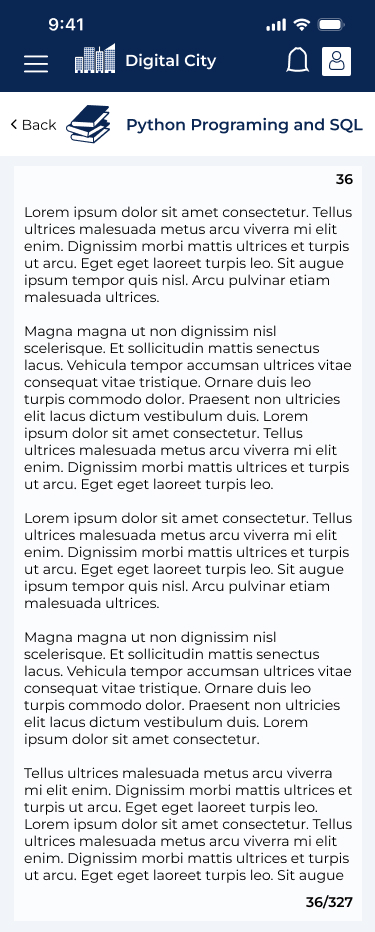
3- User can read the book on their device and swipe left or down to turn the page. (swipe right to turn back the page)
Publishers
Publishers must first register with the digital city as an individual or business and must be approved by the administrators (who are community leaders). Each piece of literature uploaded must also go through admin approval to ensure that only eligible literature is uploaded and available for purchase on the platform (mainly to prevent distasteful items into the library). The system for them works a little differently from the core users since they need to upload books and literature and see how they’ve been selling.
Dashboard
Dashboard Goals
We desired for the dashboard to be simple, eye-catching, and containing all the most important links for the publisher to access any functions they may need to perform quickly.
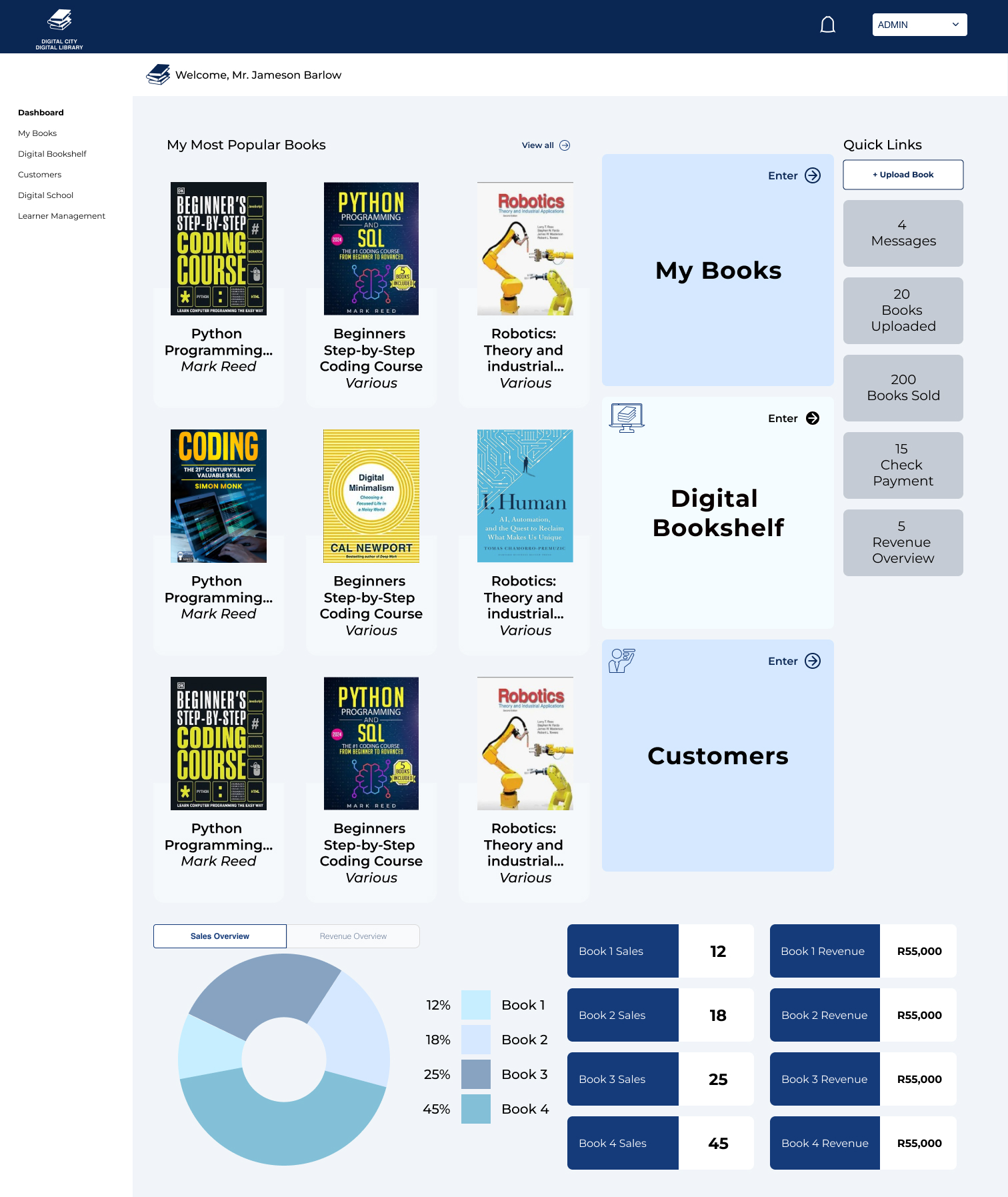
Side Navigation
- The Dashboard for publishers contains a side navigation to “My Books” which shows the books they’ve uploaded and any statistics with that.
- It contains the “Digital Bookshelf” which takes them to the main user platform to search and buy books.
- An overview of their “customers” to check payments (until the payment “Digital Wallet” system is completed by the Administration and the contacts are set- for now it is up to business owners to conduct sales and report sales with customers).
- The Side navigation also contains links to the “Digital School” and Learner Management” since they may be dealing with lots of students. (Teachers, tutors, and facilitators can use the platform and add certain books to classes within it).
Dashboard essentials
- Publishers can view their most popular books on the dashboard with a link to all their books.
- Publishers get a sales and revenue overview graph at the bottom.
- Clear Button for User to upload a book in the top right corner.
- They get quick links to “Messages”, “Sales”, “Check Payment” and “Revenue Overview”
- Links to view their “customers” “My Books” and the “Digital Bookshelf” are plain to see too.
Uploading a Book
The main desire here was it to be quick and easy to upload a book. Of course it involves form filling features and the stakeholders didn’t want the publishers to navigate too many pages to go through the process.
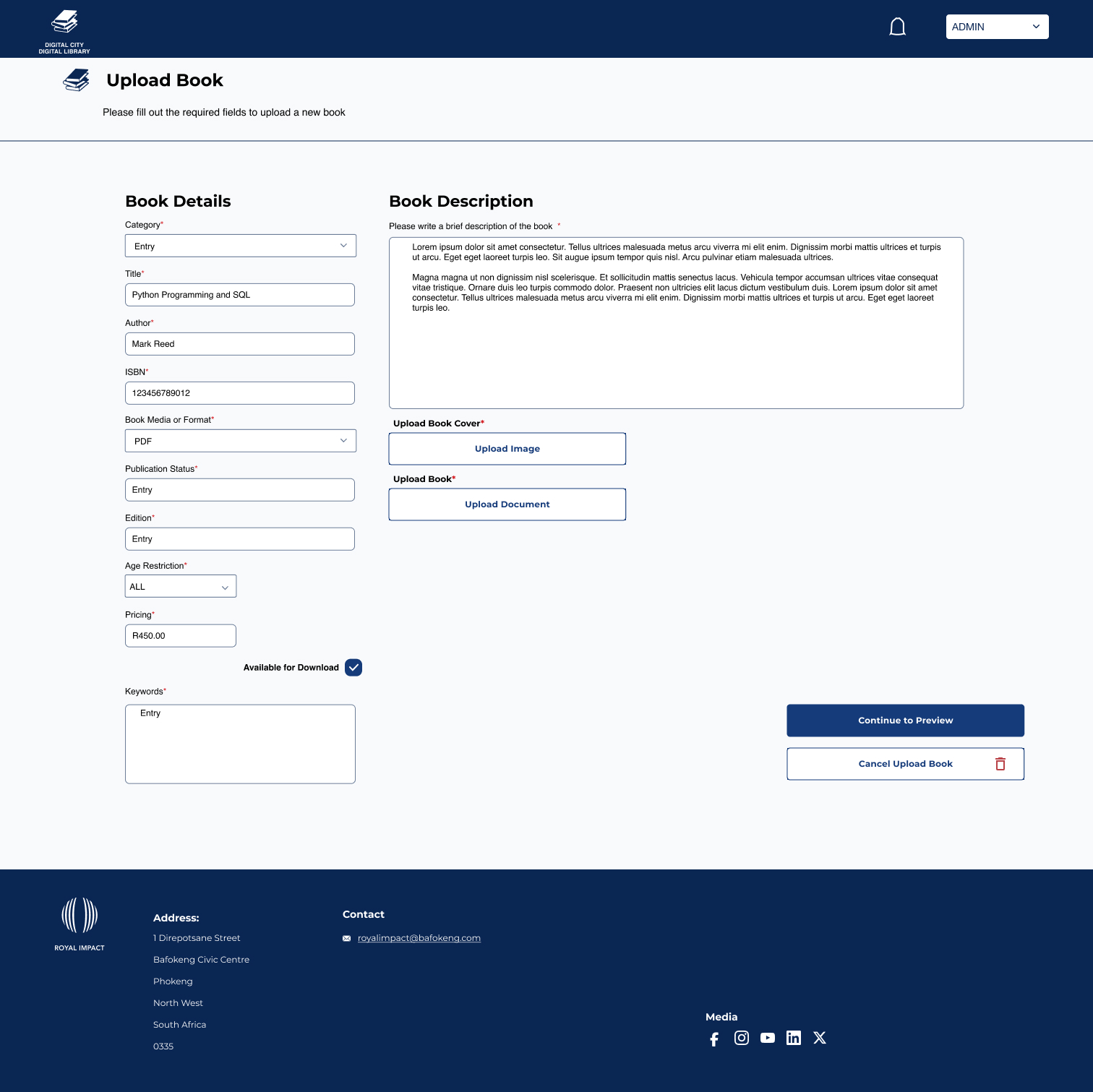
The Publisher simply:
- Selects a category (genre).
- Enters the title.
- Enters the Author’s name.
- Enters IBSN.
- Selects Media/Format
- Publication Status
- Enters the Edition
- Sets the Price.
- Enters Keywords
- Enters a Description
- Uploads the Cover.
- Uploads the Book.
After this they continue into a preview to see what the upload would look like.
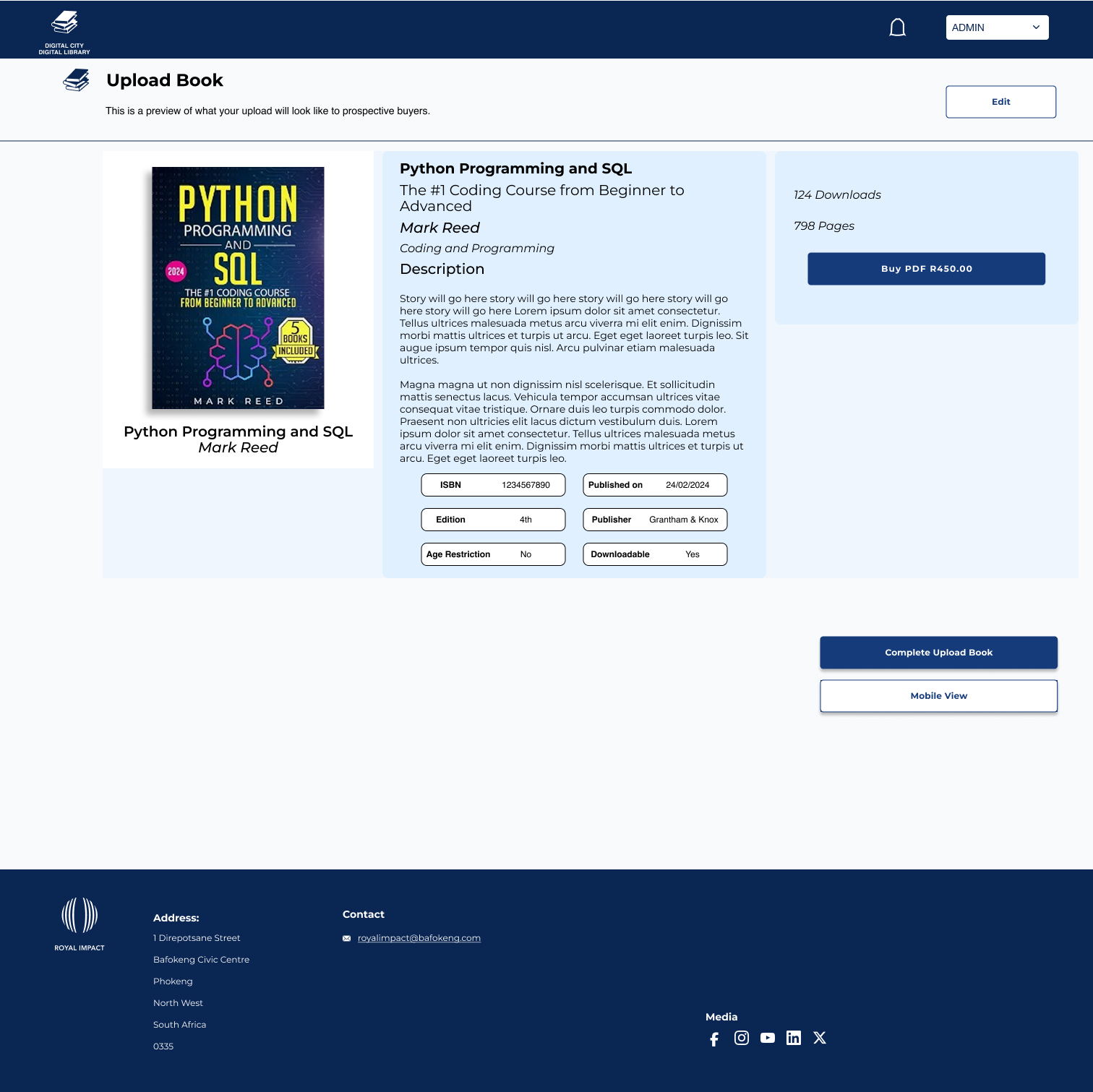
The Publisher is given the option to edit (top right) and see what it would look like on Mobile too (bottom right).
Tracking Book Sales
There are two ways that publishers can track the sales of their books. First is by tracking the book sales in “My Books”, the other is through tracking the customer’s payment while the (upcoming) “Digital Wallet” is sorted out with the “Customers” pages.
My Books
When the publisher enters “My Books” through the Dashboard or side navigation they enter this page.

My Books gives the publisher a new dashboard showcasing:
- Most recent purchases and whether that individual’s payment has been processed.
- Quick access to their books to see individual performance of those books.
- Key Statistics such as:
- How many books have sold.
- How many payments received.
- How many payments are still pending (to be approved).
- How many downloads.
- Expected Earnings
- Total Revenue.
- Underneath it shows graphs of how each book is selling.
- Ability to download a CSV for bookkeeping.
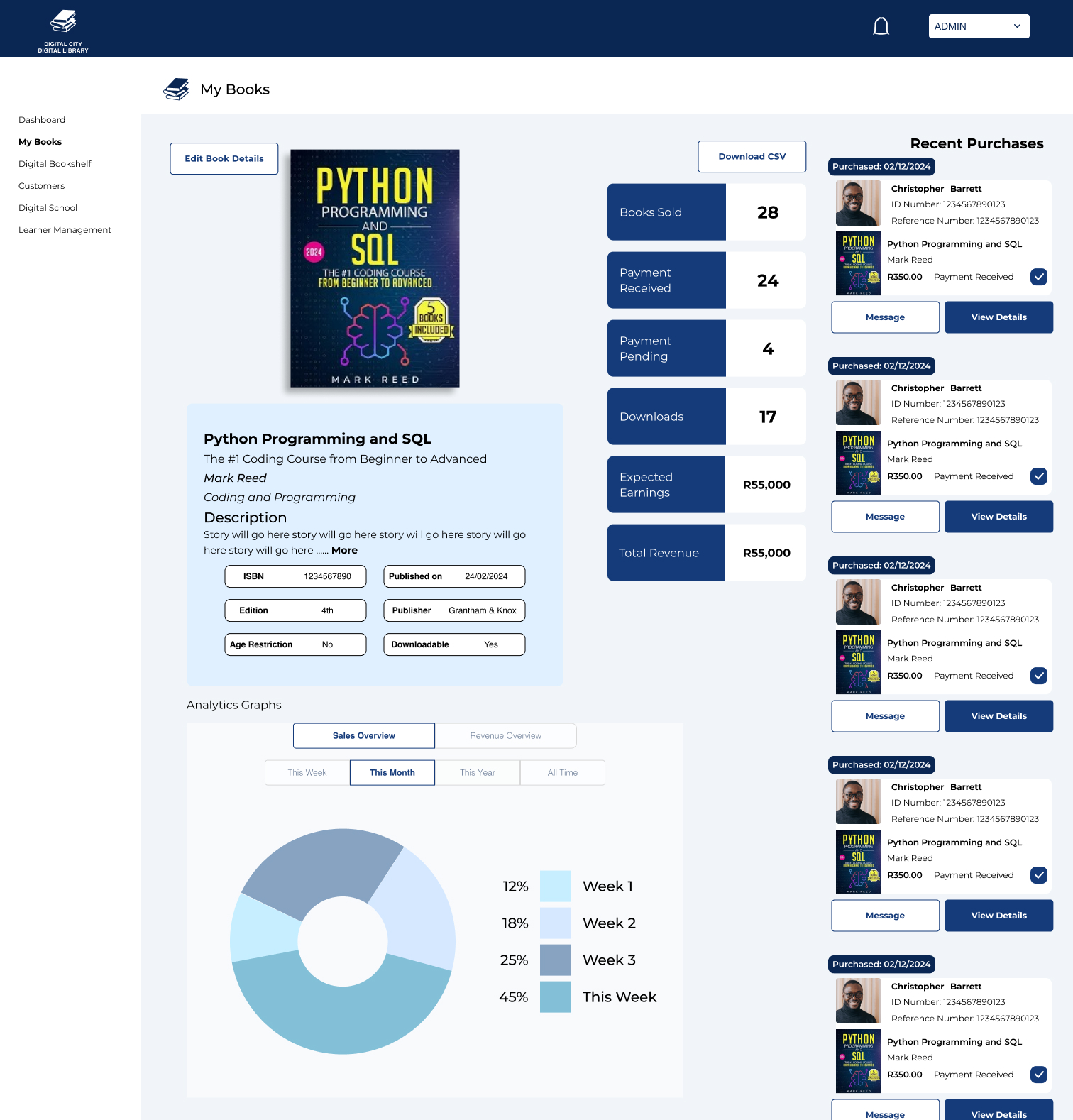
- The Publisher can also see how individual books are performing with more in-depth graphs.
- It shows only the recent purchases of that particular book.
- All the Statistics are about that particular book.
- They can edit the details of the book if needed (this will have to go through vetting with the admins)
- Plus they can download a CSV of just that books sales.
Customers
The Customers page allows the publisher to sift through recent purchases.
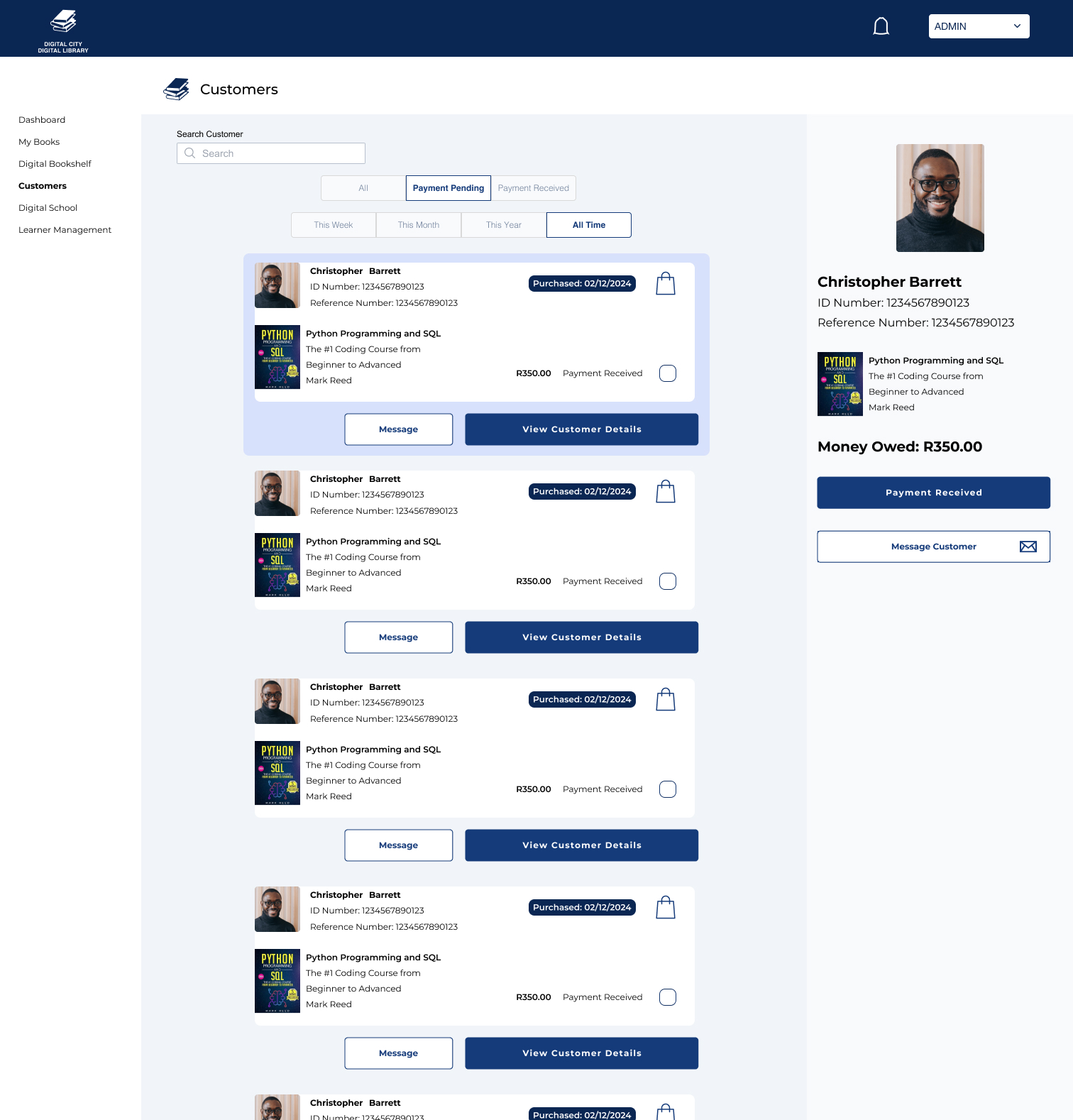
The publisher has the options to:
- Search for specific customers.
- View
- “All” Customers,
- Customers who have paid (Payment Received)
- And those whose Payment is pending
- They can also view based on time
- This Week
- This Month
- This Year
- All Time
The Publisher can select users and cross reference payments through other systems so their revenue shows up through the Digital City (until the upcoming “Digital Wallet” does it automatically).
Conclusions
We needed to create a bookstore for users to purchase books and publishers to upload books while keeping in mind that a payment system was still being built and needed certain approvals outside of our domain. However we wanted the ability for users to find the books they needed to buy and also quickly access the books that they may need for courses they are taking with the school. I think that the adaptive homepage achieves that, allowing for quick access based on classes and modules.
For publishers being able to sort out certain payments and still see revenue and having the relative ease of a single screen to upload a book and all the media achieves that too. Plus how the dashboard provides very quick access to any information they may need to access helps it to be a successful platform and I wish the Digital City success with it.
What to read next?
 Michael Russell Design Portfolio